
Here is a number that surprises a lot of iPhone owners: on the newest models, Apple Intelligence can now require up to 14GB of free space under iOS 27, nearly double the 8GB that older compatible iPhones need. If your phone was already hovering near full, the AI models may be the thing that finally pushes it over the edge.
The 14GB figure comes from Apple’s own support documentation. It applies to the iPhone 18 Pro and Pro Max, the iPhone Duo, the iPhone 17 Pro and Pro Max, and the iPhone Air, because those phones run a more powerful on-device model that powers customizable Siri AI voices and more accurate dictation. Every other iPhone that supports Apple Intelligence needs up to 8GB. Either way, that is storage you never chose to spend, and on a 128GB or 256GB phone it is a meaningful chunk.
The good news: you can usually win back a lot of space without deleting a single photo. Here are seven moves, roughly in order of payoff.
1. See exactly what is eating your storage
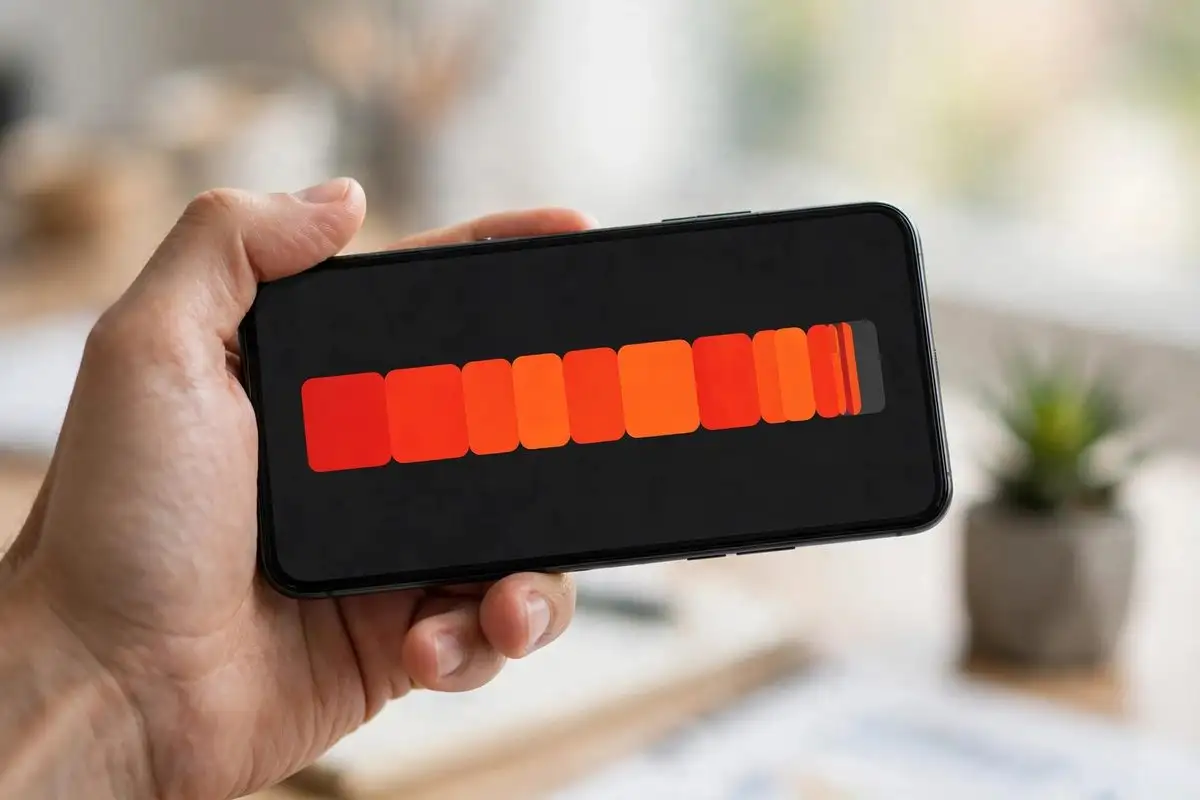
Open Settings, tap General, then iPhone Storage. Give it a minute to calculate. You will get a color-coded bar and a list of apps sorted by size, with Apple’s own recommendations at the top, like offloading unused apps. This screen is the map for everything below. Check it first, and check it again after each step, because the biggest wins are rarely where you expect them.
2. Hunt down the giant message attachments
For most people, Messages is the silent storage hog. Years of shared videos, memes, and photo bursts pile up inside conversations you never clean. In iPhone Storage, tap Messages, then review the categories: Top Conversations, Photos, Videos, and GIFs. You can delete large attachments conversation by conversation, or wipe a whole category. Videos are the big one. Clearing out a few group chats can easily free several gigabytes in minutes, and your text history stays intact.
3. Turn on Offload Unused Apps
This is the closest thing iOS has to a free lunch. Offloading removes an app’s code but keeps its documents and data, so when you reinstall it later, everything is where you left it. You can enable it globally at the top of the iPhone Storage screen, or offload individual apps from the same list. The icons stay on your home screen with a small cloud badge, and a tap re-downloads the app. Games you finished months ago are the classic target.
4. Switch your photos to Optimized Storage
If you pay for iCloud, this one is almost mandatory on smaller phones. Go to Settings, tap your name, then iCloud, then Photos, and choose Optimize iPhone Storage. Your full-resolution photos and videos live in iCloud, and your phone keeps lightweight versions that look identical on screen, downloading the original only when you zoom, edit, or share. On a photo-heavy phone this routinely frees tens of gigabytes, and it is the single biggest win for most people who have never touched the setting.
5. Clear the browser and app caches you forgot about
Safari quietly accumulates website data. Go to Settings, Apps, Safari, and tap Clear History and Website Data, or just the website data if you want to keep your history. If you use Chrome or another browser, check its own settings for a browsing data clear. Then look at streaming apps: Netflix, YouTube, Spotify, and Apple Podcasts can each be holding gigabytes of downloads you watched or heard once. In Podcasts, turn off automatic downloads and remove old episodes. In music apps, review your downloaded playlists. This is boring maintenance, but it adds up fast.
6. Reconsider the Apple Intelligence models themselves
This is the nuclear option, and it is worth understanding before you touch it. Apple’s documentation confirms the on-device AI models can be removed by turning Apple Intelligence off, which returns the 8GB, or up to 14GB on the newest phones, to you. On the iPhone Duo, for example, the models account for roughly 7GB on top of the 12 to 24GB the standard iOS 27 configuration takes, so a 256GB Duo effectively gives you around 225GB of usable space with everything on.
The cost is real: no Siri AI, no Writing Tools, no Genmoji or Image Playground, no notification summaries or smart replies. If you use those daily, the storage is probably worth it. If you bought a 128GB iPhone and mostly text and browse, it may not be. One detail worth knowing: your device language and Siri language have to match for the features to work at all, and changing the Siri language triggers a fresh model download, so toggling languages back and forth can quietly re-eat the space you just freed. Mac users facing the same squeeze now have a third-party option, as the new RemoveMacAI tool shows, but on iPhone the built-in toggle is your only lever.
7. Pick the right storage tier next time
This one is for your next purchase, and it matters more than it used to. With the OS taking up to 24GB, AI models taking up to 14GB, and photo libraries and games only growing, the old advice of “128GB is fine for light users” is looking shaky. If you are weighing an upgrade, our iPhone 18 Pro vs iPhone 17 Pro comparison breaks down what the extra money gets you, and if you are eyeing the foldable, our iPhone Duo pre-order prep guide walks through the storage math before the October 23 launch. The cheapest gigabyte is the one you buy upfront, because Apple still does not let you add storage later.
Start with the storage screen, work through the list, and most phones give up 10 to 30GB without losing anything you will miss. And if you are running the latest beta, keep an eye on iOS 27.2 beta 3, which brings Siri to five new languages, and with them, potentially, another round of model downloads. Your storage plan should assume the AI on your phone is only going to get bigger from here.