
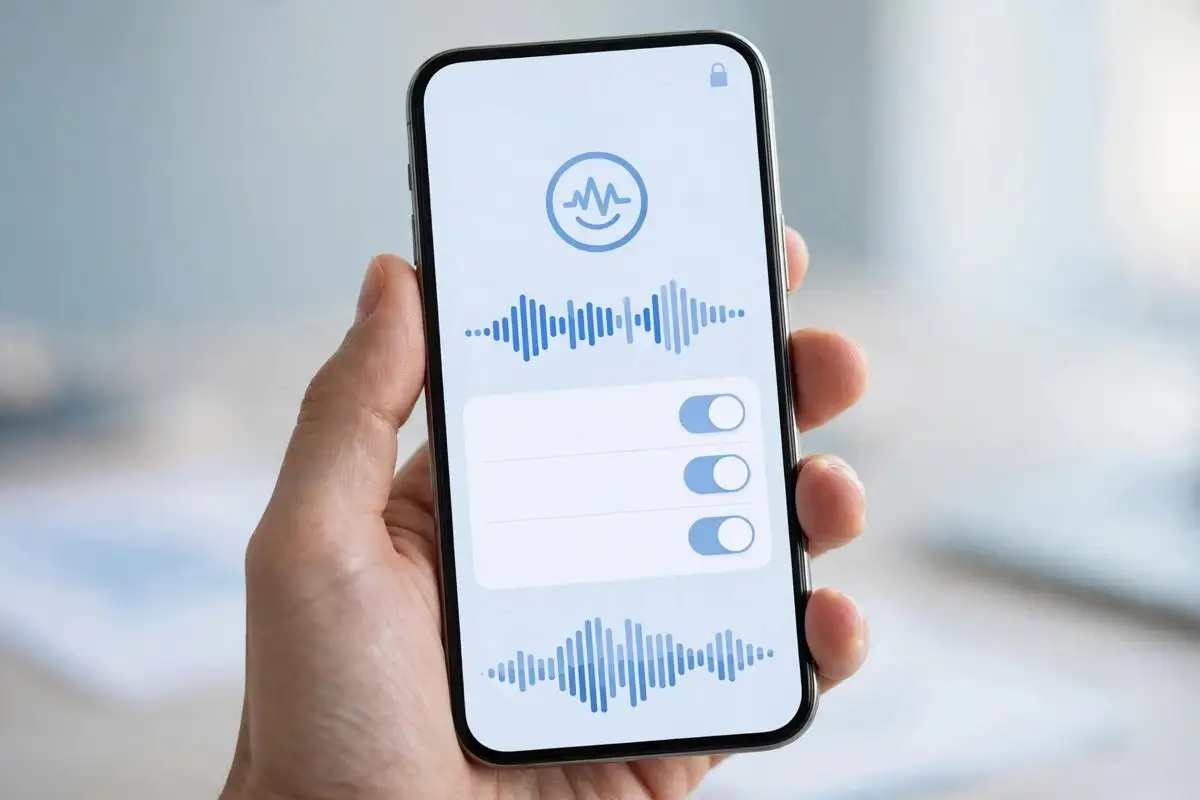
iOS 27.2 is live, and one of its headline features is also its most personal. Siri AI now has memory, which means it can remember things about you across conversations and use them to give better answers. That is genuinely useful, and it is also exactly the kind of feature you should configure before you get used to it, not after.
This is not a warning to turn everything off. Memory makes Siri more helpful, especially if you ask it to follow up on earlier requests. But the defaults decide how long your conversations are kept, what Apple can review, and which apps Siri can look inside. Five settings, checked in about five minutes, put you back in charge. Our iOS 27.2 launch coverage explains what else arrived in the update, and our pre-update checklist covers the backup and storage steps to do first.
1. Set Siri chats to auto-delete after 30 days
By default, the Siri app can keep your conversation history indefinitely. The simplest change is to put a time limit on it. Open Settings, tap Siri, then tap Keep Conversations, and choose 30 Days or 1 Year. From that point, chats older than your chosen window are deleted automatically, and the deletion cannot be undone.
There is one trade-off to know before you tap. Siri conversations sync through iCloud across your devices, so deleting a chat on your iPhone also removes it from your iPad, Mac, and Vision Pro. If you want a long conversation kept on your Mac but not your phone, turn off Siri iCloud sync on the phone first, and accept that new chats will no longer sync to it either. For most people, 30 days is the right balance. Anything you truly need for longer belongs in Notes, not in a chat log.
2. Turn off the Improve Siri improvement program
This is the setting most people confuse with memory itself, and they are different things. Memory is Siri remembering your past chats to help you. The improvement program is Apple storing audio and transcripts of some interactions so employees can review a subset of them and improve Siri. Apple’s privacy page says that data can be retained for up to two years when you opt in, with a small reviewed subset kept longer.
To opt out, open Settings, then Privacy and Security, then Analytics and Improvements, and turn off Improve Siri and Apple Intelligence (labelled Improve Siri and Dictation on some versions). Be clear about what this does and does not do. It stops future participation in the review program. It is not a guarantee that everything collected while you were opted in is erased immediately. That is why this step pairs with step 3, not instead of it.
3. Delete the Siri and Dictation history already on your phone
Turning off a collection switch does not clean up what is already stored on the device. Open Settings, tap Siri, then tap Siri and Dictation History, and tap Delete Siri and Dictation History. Do this after step 2, and repeat it every few months if you use Siri heavily. Think of it like clearing a browser history, routine hygiene rather than a one time fix.
4. Decide which apps Siri can look inside
Siri AI is more useful than the old Siri partly because it can read inside your apps, and that is also why app access deserves a decision, not a default. Banking, health, and work apps are the obvious ones to exclude. In iOS 27.2, you can exclude apps from Siri, Search, and suggestions, and you can also control per-app search access under Settings, then Apps, then the app in question, then Search.
A practical rule works well here. If you would not want the contents of an app read aloud in a meeting, exclude it. You lose some convenience, since Siri will no longer surface that app’s content in suggestions, but you keep the boundary where it matters. Review this list after installing any new sensitive app, since defaults for new apps are easy to miss.
5. Block the ChatGPT handoff if you do not want it
Siri AI can hand some requests to ChatGPT through an intelligence extension. That is useful for harder questions, but it means your request leaves Apple’s system and goes to a third party under different terms. If you do not want that, open Settings, then Screen Time, then Content and Privacy Restrictions, and turn restrictions on. Then tap Intelligence and Siri, and set Intelligence Extensions to Don’t Allow. You can also block Image Creation and Writing Tools from the same screen if you want AI features silenced across the board.
One honest caveat for iOS 27 owners: there is no longer a single master switch for Apple Intelligence, as there was on iOS 26 and earlier. Apple removed it, so features now have to be turned off one at a time, using the steps above. Turning features off also does not necessarily delete the on-device AI models, so do not expect a large storage refund. What you are buying with these five minutes is control over your data, not free space.
A sensible default for most people
If you only do one thing, set Keep Conversations to 30 days. If you do two, add the improvement program opt-out. If you handle sensitive information on your phone, do all five, and put a recurring reminder in your calendar to recheck them after each major iOS update, since settings screens move between releases and defaults sometimes reset.
Siri AI memory is a good feature, and it will only get more capable. The mistake is not using it. The mistake is letting it remember everything, forever, in every app, by default, because you never opened the settings page. Five minutes now is cheaper than untangling a year of chat history later.