
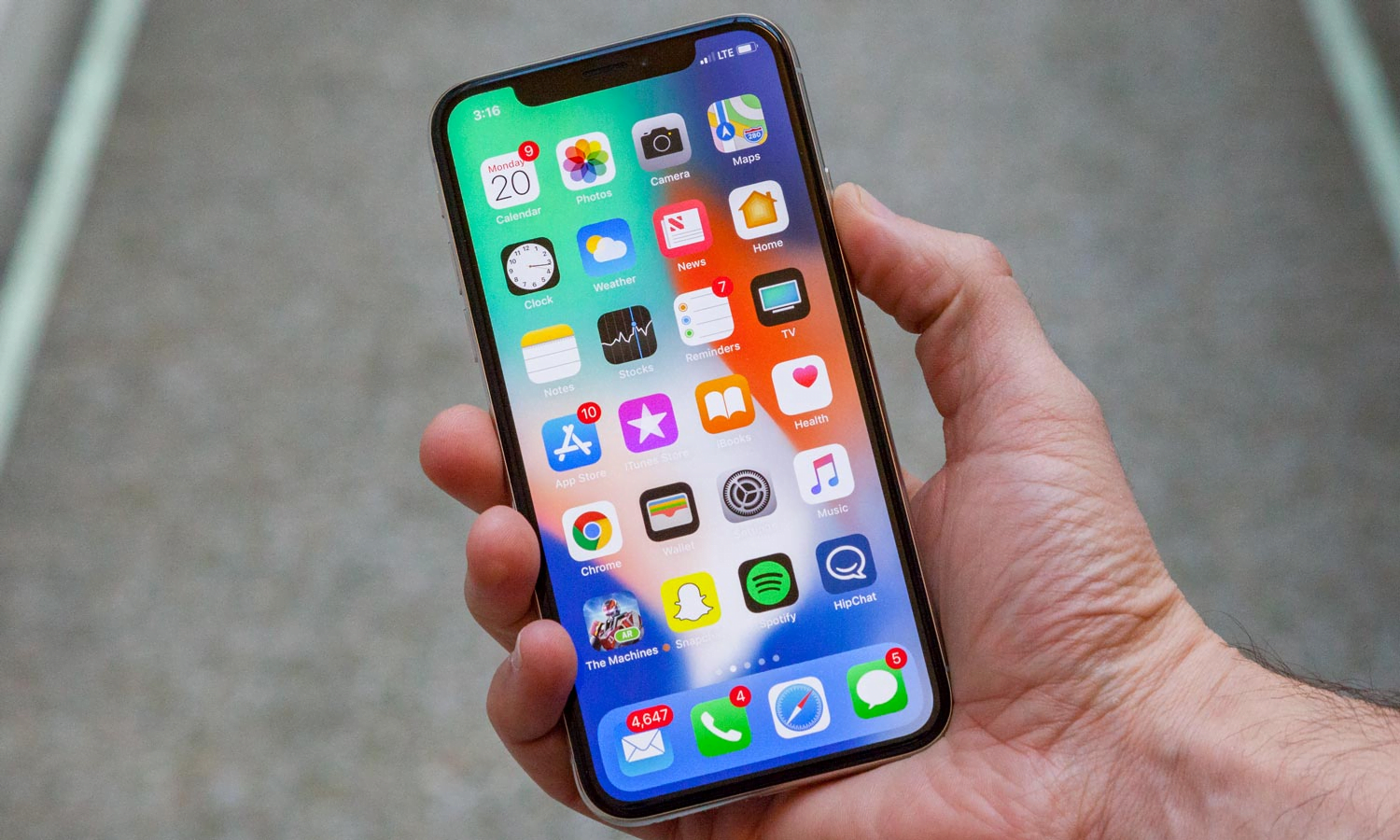
There are many ways to transfer photos from your iPhone to PC or Mac
How to Transfer Photos from iPhone to Mac
You can use the photo transfer feature in the Photos app that both Mac and PC offer. It’s important to note that the import Photos from iPhone to Mac process has changed a little since MacOS Catalina.
How to Transfer Photos from iPhone to Mac in macOS Catalina (version 10.15) & Later
macOS Catalina (version 10.15) is the sixteenth major release of macOS release in October 2019.
- Connect your iPhone to your Mac with the USB cable. Your iPhone must be unlocked.
- Open Photos app on your Mac.
- Select your iPhone from the left side in Photos App.
- Select the required photos you need to import by clicking on them.
- Click the Import button at the top in Photos app.
How to Download Photos from iPhone to Mac with AirDrop
If you don’t have a cable or if your USB cable doesn’t connect to MacBook which doesn’t have USB type-A cable, you can use AirDrop which uses Wi-Fi to transfer files from iPhone to and from Mac, you need to connect both your iPhone and mac to Wi-Fi and AirDrop requires a 2012 or later Mac model running OS X Yosemite or later to transfer photos from iPhone to Mac.
- OpenPhotos app on
- Select all the required photos you wish to transfer to the mac
- Tap on the Share icon on your iPhone.
- Select AirDrop in the Share menu.
- Choose your device to which you need to transfer.
- If successful, it will show as Sent.
- Tap Done.
Note: You need to be signed in using same iCloud account on both your iPhone and Mac to save photos automatically. If your Mac is not using the same iCloud account as the iPhone, you should manually click on Save to save them on your Mac.
How to Transfer Photos from an iPhone to PC(Windows)
Before you start transferring, make sure the photos you are trying to import are saved in iPhone storage rather than in the cloud. Then, follow the steps for your type of device.
- Connect your iPhone to a PC with a USB cable.
- Turn your phone on and unlock it. Windows will not show your device if the phone is locked.
- On your PC, select the Start button and then select Photos to open the Photos app.
- Select Import > From a USB device, then follow the instructions. You can pick the items you want to import and select where to save them. Allow a few moments for detection and transfer.

